
How to Add Meta Quest Support to Your Expo App
 Jakub Kosmydel•Oct 29, 2025•7 min read
How to Add Meta Quest Support to Your Expo Development Builds

At React Conf, it was announced that Meta Quest now officially supports React Native and Expo — Expo Go is even available on the Meta Horizon Store. Most core Expo modules, like camera, sensors, and file system, work out of the box.
However, when it comes to development builds, your Expo app needs a few adjustments before it can be published to the Meta Horizon Store. This can be tricky — from managing native configuration to building and testing across multiple platforms, developers often face repetitive setup steps and complex build processes.
To simplify this, we’ve prepared an Expo config plugin and common library to help you get started with the development and configuration for Meta Quest devices. It provides a ready-to-use configuration that helps you add support and publish your app to the Meta Horizon Store.
We also created forks of two Expo libraries that weren’t yet compatible with Meta Quest — expo-location and expo-notifications — enabling access to more device features on Quest.
Why build for Meta Quest?
Meta Quest is one of the leading VR platforms, offering immersive experiences across gaming, productivity, and social applications. With the growing popularity of virtual reality and the Meta Horizon ecosystem, more developers are looking to bring their React Native and Expo apps into the VR space.
By adding Meta Quest support to your Expo app, you can reach a new audience of VR users while reusing much of your existing React Native codebase. This enables developers to create cross-platform experiences that work seamlessly across iOS, Android, and Meta Quest devices — all within the Expo ecosystem.
Getting started with Meta Quest in Expo
Before you begin, familiarize yourself with the official Meta Horizon OS requirements. Meta provides great guidelines on design, performance, and publishing: Meta Developer Documentation — Design Requirements.
To add Meta Quest support to your Expo app, there are two main steps:
- Set up the platform integration using the expo-horizon-core library and config plugin.
- Migrate or adjust your libraries to versions that support Meta Horizon OS (only a few, like
expo-locationandexpo-notifications, require special handling — see Meta’s unsupported dependencies list).
Setting up the platform integration with expo-horizon-core
To prepare your app for Meta Horizon OS:
1. Install the core library
npm install expo-horizon-core
# or
yarn add expo-horizon-core
2. Add and configure the config plugin
Update your app.config.[js|ts] file to include the plugin (see configuration example below).
3. Create a new prebuild
Before running the prebuild, remove your old Android folder to ensure a clean setup:
rm -rf android
expo prebuild
4. Use Android product flavors to build for your desired device
Now you can use new flavors: quest and mobile in your native modules. To select a target platform you need to use a correct build variant, for example in package.json you can use:
{
  "scripts": {
    "prebuild": "expo prebuild",
    "android": "expo run:android --variant mobileDebug",
    "quest": "expo run:android --variant questDebug",
    "android:release": "expo run:android --variant mobileRelease",
    "quest:release": "expo run:android --variant questRelease",
  },
}
Alternatively, you can select and run the variants in the Android Studio using the Build Variants menu.
What the expo-horizon-core plugin does
The Meta Horizon Store has several requirements for apps published on its platform.
The expo-horizon-core plugin helps you automatically adjust your Expo app to meet those requirements and simplifies the setup process.
Here’s what it does:
- Configures Android product flavors for
mobileandquest(see Meta’s documentation for more). - Generates and updates the AndroidManifest — applies required Meta Horizon configuration while allowing custom overrides.
- Removes forbidden permissions — automatically skips disallowed permissions when building for Quest devices.
- Defines default supported devices — adds Quest device models such as Quest 2, Quest 3, and Quest 3 S.
- Allows you to configure screen dimensions — lets you set the default width and height for Quest displays.
- Centralizes your Meta Horizon App ID — lets you define the Horizon App ID once and share it across all libraries.
- Provides useful JavaScript utilities
-
isHorizonDevice()— detects if the app runs on a Quest device -isHorizonBuild()— identifies a Horizon-targeted build -horizonAppId()— returns the configured Horizon App ID
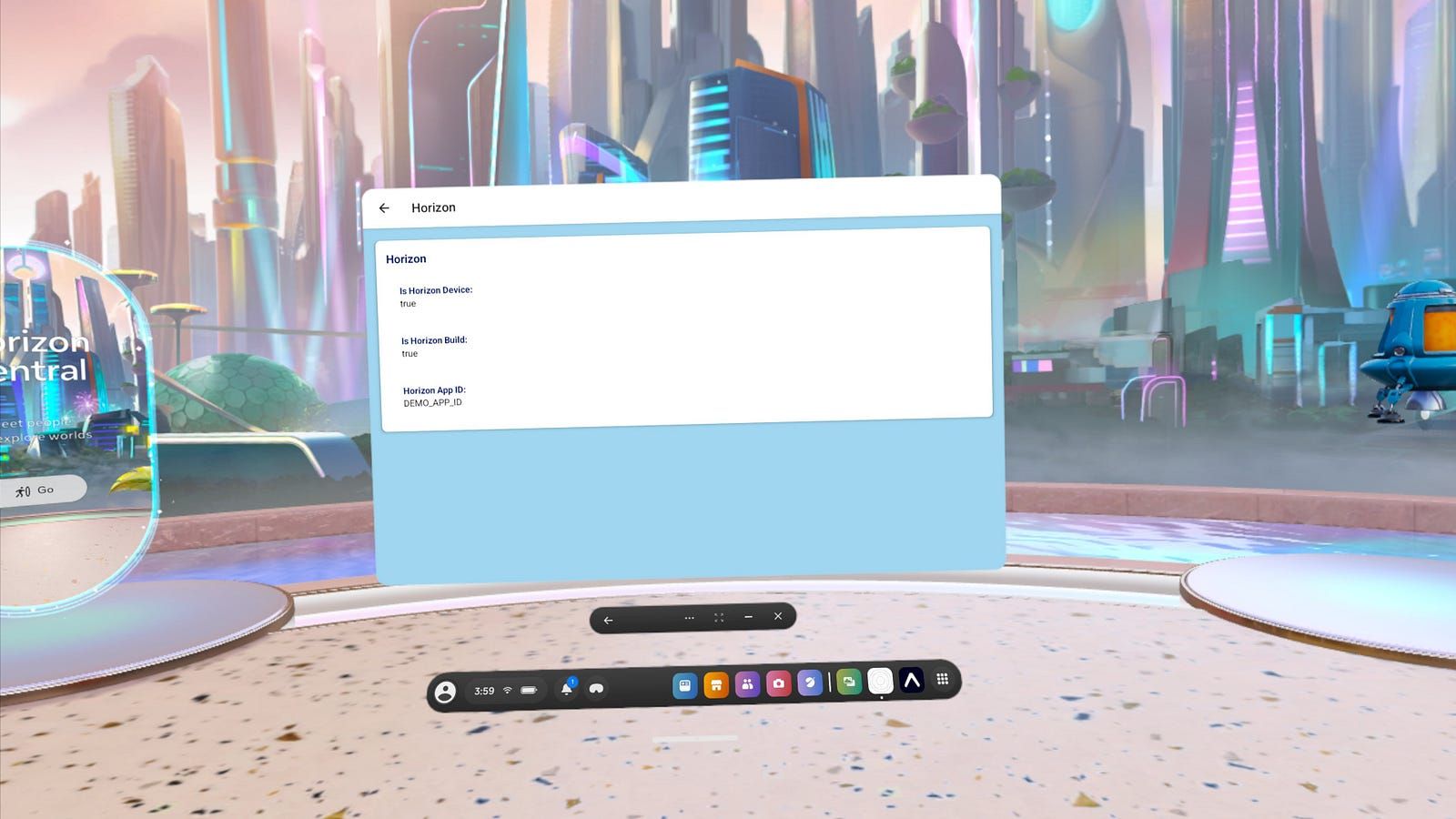
Configure your expo-horizon-core app
After installing expo-horizon-core, you need to enable its config plugin to prepare your app for the Meta Horizon Store and Quest devices.
Add the following configuration to your app.config.[js|ts] file:
{
   "expo": {
      "plugins": [
         [
            "expo-horizon-core",
            {
               "horizonAppId": "DEMO_APP_ID",
               "defaultHeight": "640dp",
               "defaultWidth": "1024dp",
               "supportedDevices": "quest2|quest3|quest3s",
               "disableVrHeadtracking": false
            }
         ]
      ]
   }
}
For the complete list of options and configuration details, see the expo-horizon-core documentation.
Add custom libraries with Meta Quest support
After setting up your development build for Meta Quest devices, you can start using the forked Expo libraries that include native support for Quest.
Adding expo-horizon-location
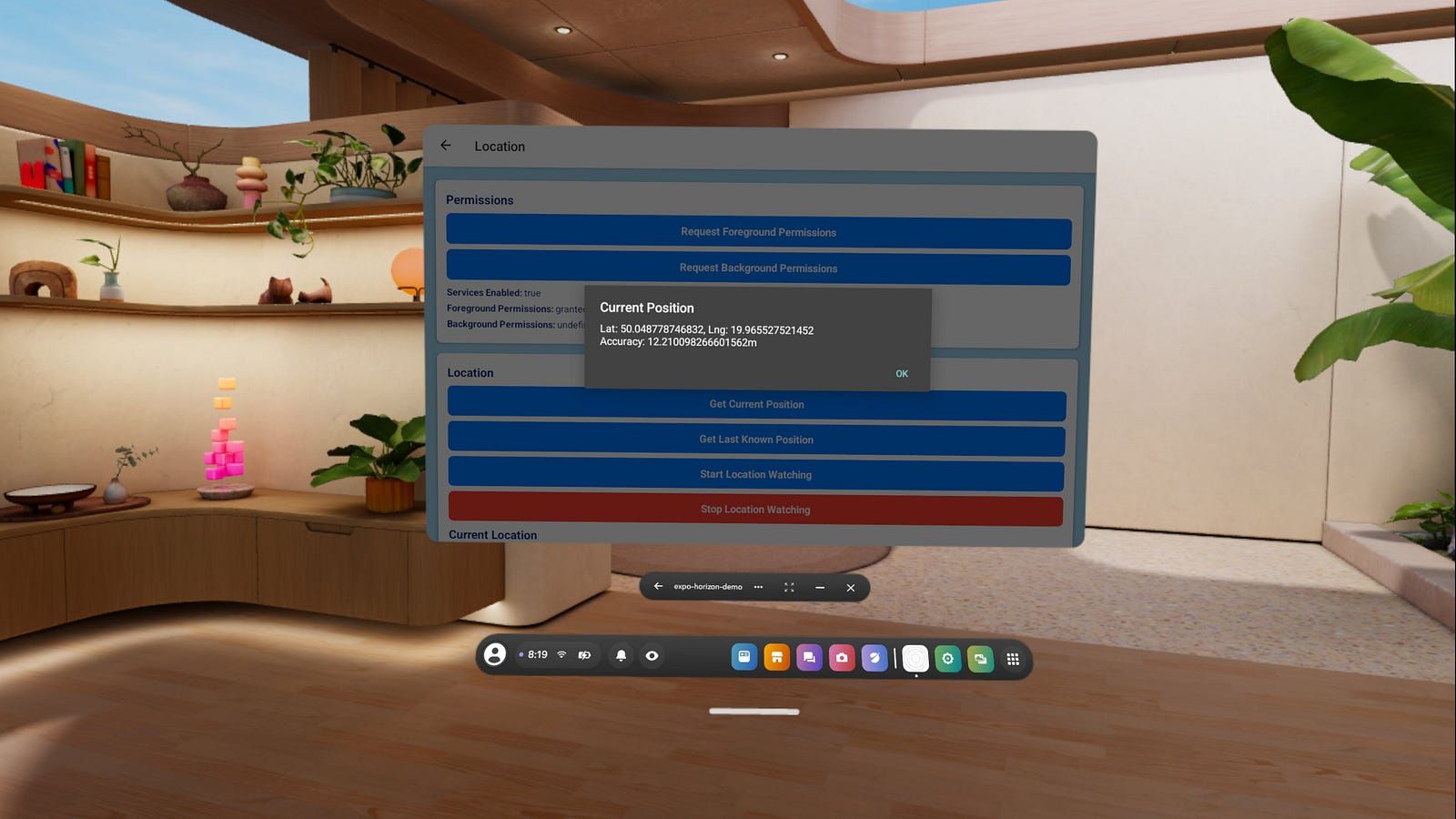
To get started with expo-horizon-location, substitute the original library with our forked version and update the necessary imports:
- Install the package:
npx expo install expo-horizon-location. - Remove the old
expo-locationpackage. - Update your app configuration — replace the
expo-locationconfig plugin withexpo-horizon-location. - Run the app using the selected flavor:
yarn mobile/yarn quest(see the How to get started? section). - Update your imports:
// import * as Location from 'expo-location';
import * as Location from 'expo-horizon-location';
That’s it! You’re ready to use location services on Meta Quest — while Android platform devices remain unaffected.
Since Meta Quest devices lack GPS sensors, their location accuracy and update frequency are limited. Additionally, certain features like geocoding, device heading, and background location are not supported.
Keep in mind that some unsupported features may throw errors when used on Quest devices. To handle this gracefully, check for isHorizonDevice() (from the expo-horizon-core) before using those features and provide a suitable fallback when running on Meta Quest.
Adding expo-horizon-notifications
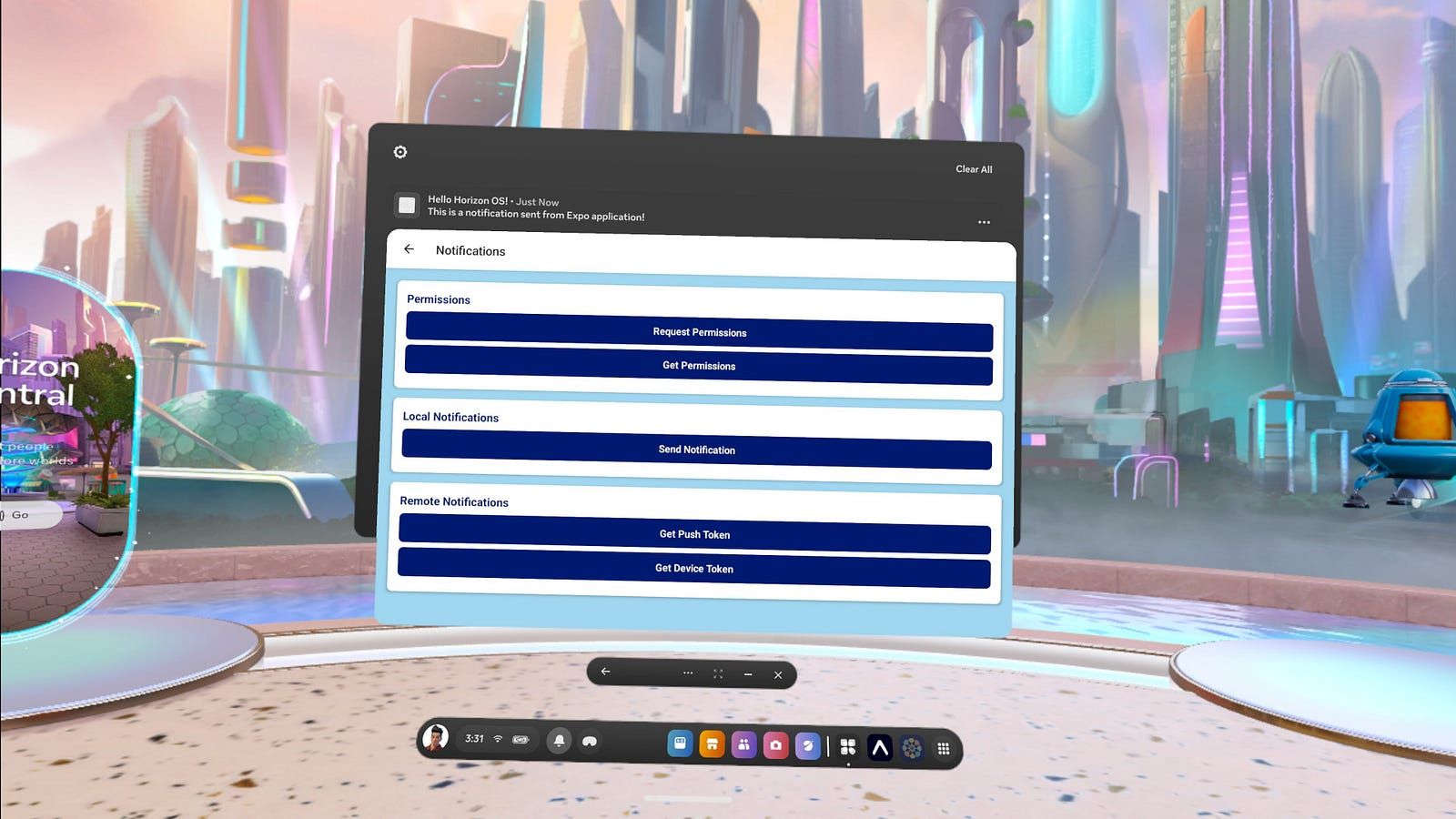
After setting up your Meta Quest development build, you can add notification support using the expo-horizon-notifications package.
The setup process is the same as for expo-horizon-location — install the package, remove the old one, and update your imports and plugin configuration. If you need any support, check the documentation.
Local notifications work out of the box — no additional setup is required. Push notifications are still under development, but you can already explore the upcoming system in the Meta Horizon Push Notifications documentation.
Note that Expo Push Service won’t be supported on Meta Quest devices.
How we built it
We built Meta Quest support for Expo by focusing on simplicity and compatibility — ensuring Android and iOS apps remain unaffected.
Instead of using environment variables (like in react-native-tvos), we chose Android product flavors. This lets developers switch between mobile and Quest builds without cleaning or prebuilding, speeds up builds through Gradle caching, and aligns with both Android’s official documentation (which recommends product flavors to manage variants) and Meta guidance (which advises using product flavors to support both Quest and mobile devices).
Importantly, since Expo didn’t fully support product flavors out of the box, we contributed upstream changes to enable this functionality. As a result, other Expo developers and libraries can now also benefit from using product flavors to manage platform-specific builds in a cleaner, more scalable way.
Additionally, all Quest-related libraries (expo-horizon-location, expo-horizon-notifications) stay in sync with upstream Expo to keep features and bug fixes up to date.
In short — product flavors, a shared config plugin, and synced libraries made adding Meta Quest support fast, consistent, and seamless.
Ready to bring your Expo app to Meta Quest?
With expo-horizon-core and our supporting libraries, you can extend your Expo project into the VR space without rebuilding everything from scratch. Whether you’re adding Horizon-ready features or preparing your app for the Meta Horizon Store, we’ve done the groundwork to make it seamless.
Want to see how far you can take it? Explore the example setup and check out the expo-horizon-core documentation. And if you have any problems along the way, don’t hesitate to reach out to us at [email protected].
As one of the top contributors to the Expo ecosystem — and the team behind the expo-horizon libraries — Software Mansion is more than ready to help you get your Horizon-enabled app up and running.
We’re Software Mansion: multimedia experts, AI explorers, React Native core contributors, community builders, and software development consultants.