Building an AI-Powered Note-Taking App in React Native — Part 1: Text Semantic Search
 Jakub Mroz•Nov 5, 2025•7 min read
Running local AI models directly on user devices offers strong privacy, offline capability, and zero recurring API costs, making it ideal for many kinds of apps, from productivity tools to creative assistants.
To show this in practice, not just in theory, we’ll build a personal AI note-taking app that runs entirely on your device. Step by step, it‘ll evolve to include semantic text and image search, speech-to-text, and RAG (Retrieval-Augmented Generation).
In the first part of the series, we’ll turn a simple React Native note app into a semantic text search engine that understands meaning — not just keywords.
What is semantic search?
So, let’s start with the basics, traditional keyword search matches exact words — if you search for “meeting,” it won’t find notes titled “team sync.”
Semantic search, on the other hand, understands meaning. It uses text embeddings — numerical representations of sentences to find semantically related results even if words differ.
This makes semantic search vs. keyword search a huge upgrade for apps that deal with unstructured data like notes. With React Native ExecuTorch, we can generate these embeddings directly on the device, enabling fast, private, and fully offline semantic search.
Project overview
We’ll extend a simple note-taking app built using Expo. If you want to follow along, start from the “base-app” branch in this repository.
The project has the following structure:
app/
  _layout.tsx           # App navigation
  index.tsx             # App entry point
  notes.tsx             # Notes list screen
  note/
    [id].tsx            # Note editor screen

services/
  notesService.ts       # Handles note creation, updates, and deletion
  storage/
    notes.ts            # Manages local data storage (via AsyncStorage)

types/
  note.ts               # Type definitions for Note objects

constants/
  theme.ts              # App theme configuration
We’ll add semantic text search functionality — powered by on-device AI models — without needing any backend.
Text embedding model
We’ll use All-MiniLM-L6-v2, a compact yet powerful embedding model widely adopted as the default in many cloud-based vector databases. It turns text into 384-dimensional vectors that capture semantic meaning rather than just keywords. At only 80 MB, it’s lightweight enough to run efficiently on-device — perfect for our local-first setup.
Packages
To enable semantic search implementation in React Native, install:
- React Native ExecuTorch: On‑device AI inference engine for models.
- React Native RAG: Retrieval utilities and vector store abstractions.
- @react-native-rag/executorch: Bridges React Native ExecuTorch with React Native RAG.
- @react-native-rag/op-sqlite: Bridges op-sqlite with React Native RAG.
- @op-engineering/op-sqlite: Embedded SQLite with vector support.
Integration steps
1. Enable OP‑SQLite vector extensions
Before initializing the vector store, make sure vector support is enabled in your project:
// package.json

"op-sqlite": {
  "libsql": true,
  "sqliteVec": true
}
2. Create the text vector store
We start by setting up a local vector database using OP-SQLite and ExecuTorch. This stores embeddings for your notes and allows semantic queries.
Import All-MiniLM-L6-v2 model and vector store connectors:
// services/vectorStores/textVectorStore.ts

import { RecursiveCharacterTextSplitter } from 'react-native-rag';
import { OPSQLiteVectorStore } from '@react-native-rag/op-sqlite';
import { ExecuTorchEmbeddings } from '@react-native-rag/executorch';
import { ALL_MINILM_L6_V2 } from "react-native-executorch";
Initialize a persistent text vector store with the embedding model:
// services/vectorStores/textVectorStore.ts

export const textVectorStore = new OPSQLiteVectorStore({
  name: "notes_vector_store",
  embeddings: new ExecuTorchEmbeddings(ALL_MINILM_L6_V2),
});
Helper function that converts a note to plain text for embedding:
// services/vectorStores/textVectorStore.ts

export const noteToString = (note: { title: string; content: string }) => {
  return `${note.title}\n\n${note.content}`;
}
Some notes can be quite long, so we split them into overlapping chunks to stay within the model’s input length limit.
// services/vectorStores/textVectorStore.ts

export const textSplitter = new RecursiveCharacterTextSplitter({
  chunkSize: 500,
  chunkOverlap: 100,
});
3. Index notes on create, update and delete
Every time a note is added, updated, or removed, we sync the vector store so semantic search stays up to date.
Add imports for text embedding and vector storage:
// services/notesService.ts

import {
  textSplitter,
  noteToString,
  textVectorStore,
} from "@/services/vectorStores/textVectorStore";
Create a new note, split its text into smaller chunks, and index their embeddings in the vector store for semantic search:
// services/notesService.ts

async function createNote(
  title: string,
  content: string,
  imageUris: string[]
): Promise<Note> {
  const note = await storageCreateNote({ title, content, imageUris });
  const chunks = await textSplitter.splitText(noteToString(note));
  for (const chunk of chunks) {
    await textVectorStore.add({
      document: chunk,
      metadata: { noteId: note.id },
    });
  }
  return note;
}
Update a note by removing its old embeddings, re-splitting the new text, and re-indexing it in the vector store:
// services/notesService.ts

async function updateNote(
  noteId: string,
  data: { title: string; content: string; imageUris: string[] }
): Promise<void> {
  await storageUpdateNote(noteId, data);

  // Remove previous embeddings for this note
  await textVectorStore.delete({
    predicate: (r) => r.metadata?.noteId === noteId,
  });

  // Re-embed updated content
  const chunks = await textSplitter.splitText(noteToString(data));
  for (const chunk of chunks) {
    await textVectorStore.add({ document: chunk, metadata: { noteId } });
  }
}
Next, delete a note and its associated embeddings from the vector store:
// services/notesService.ts

async function deleteNote(noteId: string): Promise<void> {
  await FileSystem.deleteAsync(
    FileSystem.documentDirectory + `notes/${noteId}`,
    { idempotent: true }
  );
  await storageDeleteNote(noteId);
  await textVectorStore.delete({
    predicate: (r) => r.metadata?.noteId === noteId,
  });
}
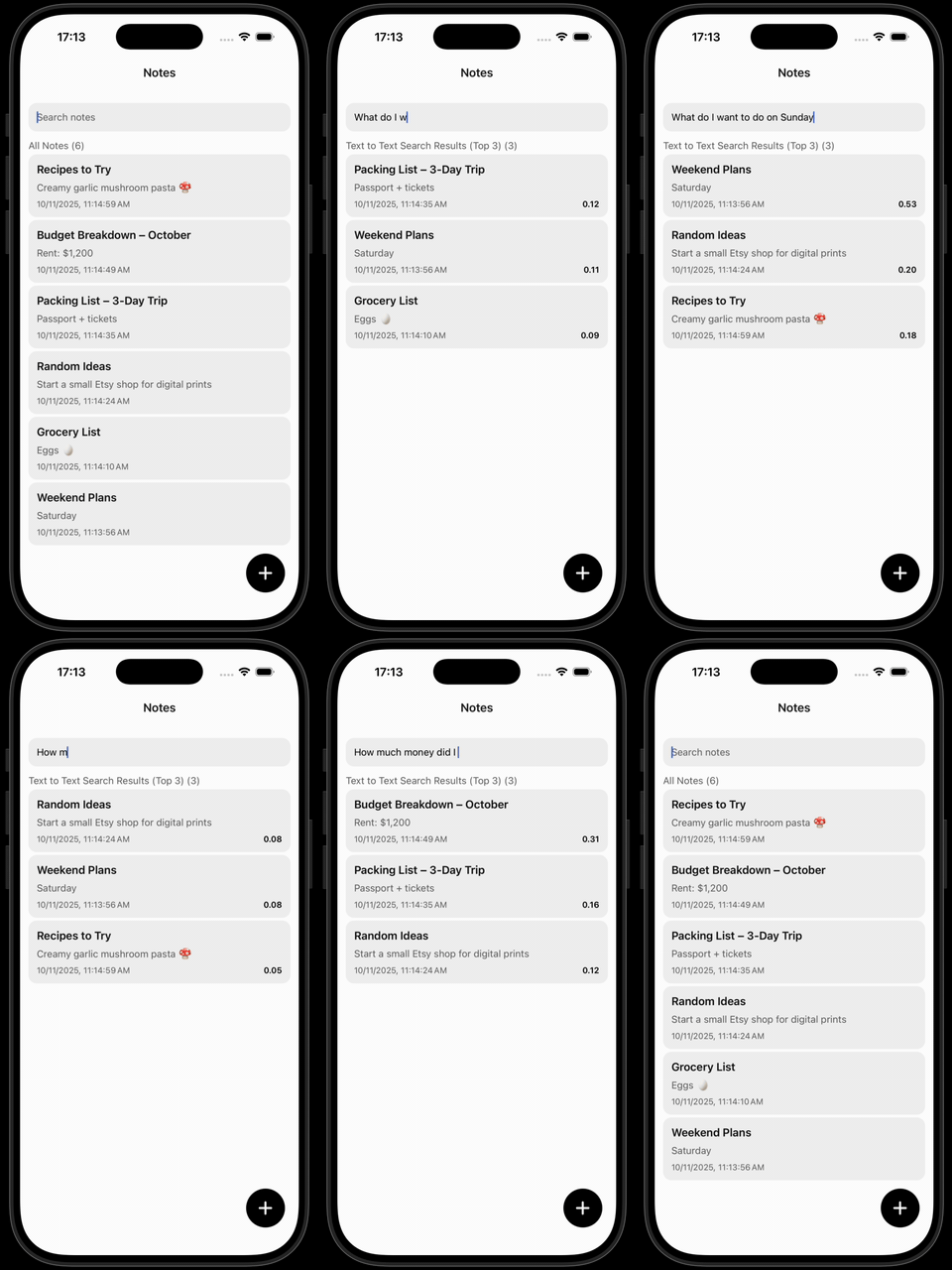
Then, perform a semantic text search across all notes by comparing the query embedding to stored note embeddings. Since each note can be split into multiple chunks, the function aggregates results by note ID and uses the highest similarity score among a note’s chunks to represent its relevance, and then ranks and returns the top matches.
// services/notesService.ts

async function searchByText(
  query: string,
  notes: Note[],
  n: number = 3
): Promise<Note[]> {
  const results = await textVectorStore.query({ queryText: query });
  const noteIdToMaxSimilarity = new Map<string, number>();
  for (const r of results) {
    const noteId = r.metadata?.noteId;
    if (noteId) {
      const current = noteIdToMaxSimilarity.get(noteId) ?? -Infinity;
      noteIdToMaxSimilarity.set(noteId, Math.max(current, r.similarity));
    }
  }
  return notes
    .filter(n => noteIdToMaxSimilarity.has(n.id))
    .map(n => ({ ...n, similarity: noteIdToMaxSimilarity.get(n.id)! }))
    .sort((a, b) => b.similarity - a.similarity)
    .slice(0, n)
}
4. Load the vector store at app start
When our AI-powered note taking app launches, we’ll load and initialize the vector store and model so everything is ready before the user starts searching.
On the first launch, the model will need to download and save, but then it’ll be loaded offline from the memory:
// app/index.tsx

import { useEffect, useState } from "react";
import { ActivityIndicator } from "react-native";
import { textVectorStore } from "@/services/vectorStores/textVectorStore";

export default function Index() {
  const [isLoaded, setIsLoaded] = useState(false);

  useEffect(() => {
    (async () => {
      try {
        await textVectorStore.load();
        setIsLoaded(true);
      } catch (e) {
        console.error('Vector stores failed to load', e);
      }
    })();
  }, [])

  return isLoaded ? <Notes /> : <ActivityIndicator />;
}
5. Usage
You can now call the semantic search method from anywhere in your app. The function returns an array of notes sorted by semantic similarity to the query:
try {
  const result = await notesService.searchByText(query, notes);
} catch (e) {
  console.error("Failed to search by text", e);
}
Results
Great job! Your AI note-taking app now understands language. That’s the power of semantic search embeddings: understanding intent instead of relying on exact keywords.
What’s coming next to our AI note taking app?
In Part 2, we’ll add multimodal and image semantic search to our app. This will allow you to search for images within your notes — using text queries or even other images. So, check out our repository & stay tuned for the next part!
We are Software Mansion — multimedia experts, AI explorers, React Native core contributors, community builders, and software development consultants.
We can help you build your next dream product — hire us.